For some Exchange Administrators, the Availability service is still a mystery or, at least, not quite well understood. So, let’s talk more about this new feature on Exchange 2007.
Basically, this service provides free and busy (f/b) information about Outlook 2007 users, used to determine users’ availability when scheduling meetings, in an up-to-date, reliable and secure way. Outlook obtains the URL of the Availability service by using the AutoDiscover service (maybe discussed in a future post!) which is responsible for providing to the client his display name, the location of his mailbox, the Outlook Anywhere server settings and the URLs for f/b information, Unified Messaging and the Offline Address Book (OAB).
Let’s go back a couple of years...In Exchange 2000 and 2003, and with clients older than Outlook 2007, a special public folder is used to store users' calendar f/b information. This folder is named SCHEDULE+ FREE BUSY and contains several subfolders for each administrative group.
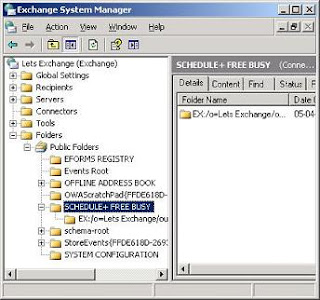
Figure 1: The SCHEDULE+ FREE BUSY System Folder on Exchange Server 2003
What Outlook does is periodically publishing the calendar f/b information into this folder which then allows other users to query this information when scheduling a meeting. However, imagine a corruption on the public folder database, or how often the replication can cause a lag between the time a user updates his calendar and when the f/b information becomes available, giving origin to out-of-date f/b information.
Back to the present...
Besides providing Outlook Anywhere, Outlook Web Access, Active Sync and other non-MAPI forms of connectivity, the Client Access Server (CAS) also provides two very important and vital services for an Exchange 2007 infrastructure: the AutoDiscover and the Availability Web Services
With Exchange 2007, the f/b information is now obtained directly from the target mailbox rather than from the SCHEDULE+ FREE BUSY system folder. This is how f/b information is now retrieved in real-time.
Note: since this is a new functionality, Outlook 2007 clients running on Exchange Server 2003 mailboxes will use public folders for the f/b information. The same thing happens with the OAB distribution.
How does it work?
1. By using AutoDiscover, Outlook establishes a connection to the CAS server running the Availability service
2. The CAS server determines on which mailbox server the target mailbox is
3. The CAS server communicates with the mailbox server (via MAPI) and obtain the f/b information
4. The results are then returned back to the user
Scenario 1
In this case, both servers are in the same Active Directory (AD) site. If they were on different ones, the CAS server would make an HTTPS connection to the target CAS server located on the AD site of the target user which would obtain and return the information back to the original CAS server and then to the user.
Scenario 2
If the target user has his mailbox on a Exchange 2003 server, situation very common during migrations, the Availability service will have to obtain the f/b information from the SCHEDULE+ FREE BUSY system folder by making an HTTPS request to the /Public virtual directory on the mailbox server hosting that folder.
Scenario 3
What if the user was running Outlook 2003 for example? Well, in this case it doesn’t matter on which server, 2003 or 2007, the target mailbox is because Outlook 2003 will always attempt to gather and publish the f/b information from/to the SCHEDULE+ FREE BUSY system folder. How could it use the Availability service if it is a new functionality?
Scenario 4
What about when using Outlook Web Access (OWA)? In this situation, OWA works just like Outlook would.
Calendar Information
The Availability service also enables users to share their calendar information in a more granular way. For each target user/group, the user can choose one of four levels of sharing:
· Share nothing
· Share their Free-Busy information
· Share a little more detail including subject, location and timing
· Full calendar details.
 Figure 2: Calendar Sharing Properties
Distribution Groups
While on previous versions of Exchange, the expansion of Distribution Groups (DGs) was made by a Global Catalog, now it is made by Exchange 2007. This allows the Availability service to provide consistent behavior for any Availability service user when expanding a DG. On Exchange 2003, for example, if the number of distribution group members was too large, the f/b data for the distribution group members would display as busy when expanded.
Configuring the Availability service
As I said before, it is crucial that the AutoDiscover service be configured for Outlook 2007 clients as it’s this service the responsible for allowing users to locate the Availability service. Most of its configuration is done automatically in a single-forest environment with no external Outlook access configured. However there are three situations where further configuration is necessary:
1. To provide external access to Exchange Web Services, like Outlook Anywhere
2. To access f/b data in a cross-forest topology
3. To access the Availability service when a Network Load Balancing array of CAS servers is in place
Since this post is already getting too big, I’m just going to give a simple example of how to do this when you are using NLB for your CAS servers without going into much detail:
1. In the Exchange Management Shell use the Get-WebServicesVirtualDirectory to check the ExternalURL in use, for example: Get-WebServicesVirtualDirectory –Identity “«CAS_Server»\EWS (Default Web Site)”
2. If necessary, modify this external URL using the Set-WebServicesVirtualDirectory cmdlet, for example: Get-WebServicesVirtualDirectory Set-WebServicesVirtualDirectory –ExternalUrl “https://«fully_qualified_domain_name»/EWS/Exchange.asmx” where «fully_qualified_domain_name» is the externally accessible DNS hostname of the CAS computer
Note that this cmdlet is also used to set the –InternalUrl parameter for a NLB cluster.
Troubleshooting the Availability service
If Outlook 2007 users can’t view calendar information for other Outlook 2007 users the problem might be a failure in either the Availability or the AutoDiscover service. So, my suggestion is to first take a look at the latter.
First, let’s see if the AutoDiscover service is unable to provide information to the clients by using Outlook 2007.
1. In Outlook 2007, log on to the mailbox of the user for whom you want to troubleshoot
2. On the Tools menu, click Options, click the Other tab, and then click Advanced Options
3. On the Advanced Options page, select Enable logging (troubleshooting), and then click OK
4. Restart Outlook and then try to view free/busy information for another user
5. Click Start, Run, and then type %temp%
6. In Windows Explorer, open the olkdisc.log file and locate the files in the olkas directory
7. The information that is contained in this directory can frequently provide information about which service is not functioning correctly
Secondly, let’s use Outlook 2007 to test the AutoConfiguration information that the AutoDiscover service provides. To test this, and while Outlook is running:
1. Hold down the CTRL key, right-click the Outlook icon in the notification area, and then select Test E-mail AutoConfiguration
2. Verify that the correct e-mail address is in the box next to E-mail Address
3. Clear the check boxes next to Use Guessmart and Secure Guessmart Authentication
4. On the Test E-mail AutoConfiguration page, verify that the check box next to Use AutoDiscover is selected, and then click the Test button
Take a look at the Results and Log tabs and check the information there for possible errors.
This was on the client side. On Exchange, there are also two ways to determine whether the Availability service is not functioning correctly.
The first one is by using the Application Event Log on the CAS server to check for events that are generated by the Availability service. For example, the events 4001, 4003, 4005 and 4011 or every event with an event source of “MSExchange Availability”.
The other way is to use the
Test-OutlookWebServices cmdlet in the Exchange Management Shell to determine whether the Availability service is functioning correctly.
To diagnose the Availability service issues for an individual user:
Test-OutlookWebServices –Identity n.mota@letsexchange.comTo diagnose the Availability service issues for a CAS server:
Test-OutlookWebServices -ClientAccessServer EXCAS1To diagnose the Availability service issues across different sites:
Test-OutlookWebServices -Identity n.mota@site1.letsexchange.com -TargetAddress j.smith@site2.microsoft.comThe resulting output will provide error details about the Availability service.
If you’re using the Availability service on a Cross-Forest scenario, please note that this service has a time limit when the it performs an AutoDiscover service request for cross-forest users in the AD directory service. By default, this is 10 seconds. If the AutoDiscover request does not finish in 10 seconds, the Availability service request for the cross-forest user may time out. This might be due to fact that the URL for the user is not cached, the AutoDiscover service is running slowly or it is experiencing network latencies.
If you want to increase this time-out value follow these steps (to increase it to 24 seconds):
1. Locate the Outlook Web Access
Web.config file on the CAS server. The default location is in the following directory:
C:\Program Files\Microsoft\ExchangeServer\ClientAccess\Owa2. Make a backup copy of this file
3. Open the original file by using
Notepad. Do not use IIS or WordPad to edit it
4. Add the following section directly under the
Configuration node after the appSettings section:
5. Save the Web.config file.
If you have client computers running Outlook 2003 and earlier or Microsoft Entourage in your organization, they require a public folder database to support Schedule+ Free Busy functionality. Exchange 2007 is the first version of Exchange that gives you the option to not use public folders. However, until all your client computers are running Outlook 2007, you should continue to use public folders. This is why the Exchange 2007 Server Setup Wizard asks you whether Outlook 2003 or Entourage clients exist in your organization. Let’s see if in Exchange 14 we’ll still be able to work with pre-Outlook 2007 versions that still rely on public folders.


