Showing posts with label Audit. Show all posts

Tuesday, April 10, 2018

Exchange Online Mailbox Audit Improvements: UpdateFolderPermissions

A few weeks ago, Microsoft added a new action to the Exchange mailbox auditing: UpdateFolderPermissions. As the name suggests, when this action is being logged, it records changes to folder permissions, be that Owner, Delegates, or Admin.

Microsoft has updated the default mailbox audit configuration to include the UpdateFolderPermissions action. In the following screenshot, we can see that auditing has not been enabled for the ServiceDesk shared mailbox, but UpdateFolderPermissions is part of the default auditing configuration for all 3 access types:

Existing mailboxes that have not deviated from the default configuration will be automatically updated to include the UpdateFolderPermissions action. My own mailbox has had the default auditing settings enabled for a long time, and now UpdateFolderPermissions was automatically added as well:

With mailbox audit configured with this action, we will find records in the audit logs when permissions of folders are added, deleted or modified. These records can be found both in the unified audit log:

Or in the mailbox audit log through the Search-MailboxAuditlog cmdlet.

In the following screenshot, we are searching the mailbox audit logs for the AddFolderPermissions action. Using these logs, we can see that I (LogonType: Owner) used OWA to give ServiceDesk Owner rights to my Clutter folder, and that I used Outlook to give them Reviewer rights to my Archive folder:


Besides AddFolderPermissions, we can also track ModifyFolderPermissions and RemoveFolderPermissions actions:

Friday, December 15, 2017

Search-MessageTrackingReport Error: You aren't authorized to perform the search

We can use the Search-MessageTrackingReport cmdlet to retrieve the message tracking report for a particular email. With this report ID, we can then pass it on to the Get-MessageTrackingReport cmdlet to get the full tracking information for that email.
However, if you are not used to these cmdlets, you might come across the following error when running your search:
Search-MessageTrackingReport nuno.mota@domain.com -Recipients jonathan.sinasac@domain.com

You aren't authorized to perform the search. You need to have permissions to search for the sender of the message or for every recipient specified.


This is because, by default, users can only track messages that they send or receive from their own mailbox. To overcome this error, simply use the BypassDelegateChecking switch which allows us to track messages for any user.

Saturday, June 18, 2016

Check Distribution Groups Created

Some organizations provide self-service for Distribution Groups (DG), that is, users are able to create DGs that are available in the Global Address List for everyone to use. Even if an organization does not have a naming convention in place, it is always important to keep an eye on what DGs are created in case a user creates one that is not acceptable.

To do this, we can use the Get-DistributionGroup cmdlet together with the WhenCreated parameter to search for DGs created in the last week, for example. However, using this cmdlet we can see who the DG’s manager is but not exactly who created it. So, we need to use the Admin Audit Logs feature already covered in some tips and articles at MSExchange.org such as the Administrator Audit Logging article by Neil Hobson. Since we will be relying on this feature, it is important that it is enabled and that we keep these logs for as long as we need to.

Another advantage of using these logs, is that we can check for DGs that were created and subsequently deleted!

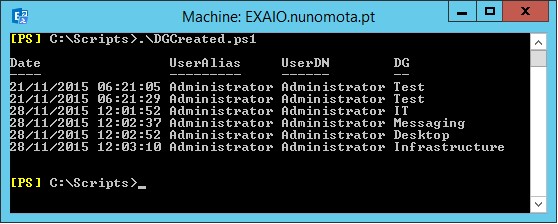
The following basic script will search the Admin Audit Logs for any DG created and return some information about it such as when it was created, by whom and its display name:
Param (
 [Parameter(Position = 0, Mandatory = $False)]
 [String] $From = "01/01/2016"
)


[Array] $DGs = @()

Search-AdminAuditLog -StartDate $From -Cmdlets New-DistributionGroup | Sort RunDate | % {
 $DG = $_.ObjectModified.Split("/")
 $DG = $DG[$DG.count - 1]

 $user = $_.Caller.Split("/")
 $user = $user[$user.Count - 1]
 $userDN = (Get-Mailbox $user).DisplayName

 $DG = New-Object PSObject -Property @{
  Date  = $_.RunDate
  UserAlias = $user
  UserDN  = $userDN
  DG  = $DG
 }

 $DGs += $DG

}

$DGs | Sort Date | FT Date, UserAlias, UserDN, DG -AutoSize


For a more complete report, please check my Exchange Distribution Group Creation Report article on MSExchange.org which generates an HTML report similar to:


Thursday, April 21, 2016

Search Admin Audit Log Old Properties

When searching the Admin Audit Log using the Search-AdminAuditLog cmdlet, you might find some useful information missing:
Search-AdminAuditLog -Cmdlets Set-TransportService

ObjectModified     : EXAIO
CmdletName         : Set-TransportService
CmdletParameters   : {MessageTrackingLogMaxAge, MessageTrackingLogMaxDirectorySize, Identity}
ModifiedProperties : { }
Caller             : nunomota.pt/Users/Admin
Succeeded          : True
Error              : None
RunDate            : 9/10/2015 8:47:48 AM
OriginatingServer  : EXAIO (15.00.1104.000)

From the above, we can see what was changed (the maximum age for the logs and the maximum allowed size for the directory) but not what these settings were changed to...

To see this, we have to dig deeper into CmdletParameters:
(Search-AdminAuditLog -Cmdlets Set-TransportService).CmdletParameters

Name                                 Value
----                                 -----
MessageTrackingLogMaxAge             45.00:00:00
MessageTrackingLogMaxDirectorySize   10 GB (10,737,418,240 bytes)
Identity                             EXAIO

Now we know exactly what the user Admin changed! But what about if we want to know what these settings were before this change?

By default, the administrator audit log records only the cmdlet name, cmdlet parameters (and values specified), the object that was modified, who ran the cmdlet, when the cmdlet was run, and on what server the cmdlet was run. The administrator audit log does not log what properties were modified on the object. If we want the audit log to also include the properties of the object that were modified, we need to enable verbose logging by setting the LogLevel parameter to Verbose:
Set-AdminAuditLogConfig –LogLevel Verbose

When we enable verbose logging, in addition to the information logged by default, the properties modified on an object, including their old and new values, are included in the audit log:
(Search-AdminAuditLog -Cmdlets Set-TransportService).ModifiedProperties

Name                                 NewValue      OldValue
----                                 --------      --------
MessageTrackingLogMaxAge             45.00:00:00   31.00:00:00
MessageTrackingLogMaxDirectorySize   10 GB         5 GB

Now we know exactly what got changed and what the old configuration was!

Saturday, February 20, 2016

Distribution Groups Statistics

As an Exchange Administrator, have you ever wondered if all those Distribution Groups are actually being used? Organizations running Microsoft Exchange Server are likely to have been running Exchange for a at least a few years and also likely to continue to do so for a while. After all those years, more and more distribution groups get created, some of them stop being used, some are simply forgotten, etc.

Maybe you got asked by the Audit department or by your manager for a list of the 20 most utilized groups, or maybe you are just curious. The good news is that as long as you have Message Tracking Logs enabled, you can easily get this information!

The easiest way to track messages sent to distribution groups is to list all the expansion events. When a user sends an email to a group, Exchange needs to expand that group in order to know who to send the email to. This gets registered with an EventID of EXPAND. Additionally, the RelatedRecipientAddress field in the EXPAND entry contains the PrimarySmtpAddress of the expanded group. And this is pretty much all the information we need.

Using the following cmdlet, we can get a list of all the emails sent to distribution groups on the 1st of January 2016:
Get-MessageTrackingLog -Start 01/01/2016 –End 01/02/2016 -EventID Expand | Select Timestamp, RelatedRecipientAddress, MessageSubject

But what we really want is to know how many emails were sent to which groups during a particular time. Not a problem! All we need to do is tweak the cmdlet above and add Group-Object:
Get-MessageTrackingLog -Start 01/01/2016 –End 01/02/2016 -EventID Expand | Group RelatedRecipientAddress | Sort Count –Descending | Select Count, Name


Do not forget to add Get-TransportService (or Get-TransportServer in Exchange 2007 and 2010) to get the logs across all transport servers if you have more than one!

If you are interested in getting the Top 20 most used groups, for example, this is also very easy:
Get-TransportService | Get-MessageTrackingLog -ResultSize Unlimited -Start 01/01/2016 -EventID Expand | Group RelatedRecipientAddress | Sort Count -Descending | Select -First 20 | FT Count, Name -AutoSize

Monday, April 20, 2015

Office 365 Compliance Center

The new Compliance Center contains the key compliance-related features for an Office 365 administrator to manage compliance across Office 365, Exchange Online and SharePoint Online.
 
Currently many of the compliance features are still accessible through service-specific management interfaces, such as the Exchange Admin Center. However, this will change in the future as more service independent compliance features are added to the Compliance Center.
 
Consolidating compliance functionality across services into this single area will make compliance features easier to access and enhance your end-to-end task-based experience.
 
To access the Compliance Center you can either go directly to its URL at https://compliance.protection.outlook.com/Ucc or, if you are an Office 365 administrator:

1. Sign in to Office 365;
2. Select the app launcher icon in the upper-left and choose Admin:
 
3. In the lower-left navigation, expand Admin and choose Compliance:
 
4. You are then taken into the new Compliance Center:
 
 
As mentioned, this is currently being rolled out so it is possible that you will not see all the features in here just yet. For example, there will be an Auditing section as well which is not yet present in my tenant.
 
Stay tuned for a full article on the new Office 365 Compliance Center!

Friday, June 20, 2014

Netwrix Auditor Product Review

Netwrix is a US software company that specializes in auditing solutions for IT systems and applications. Its flagship product is Netwrix Auditor, previously known as Change Reporter Suite. Netwrix Auditor collects data on changes made to an IT infrastructure, such as Exchange, Active Directory, EMC storage, SharePoint, SQL, VMware and more. It generates reports showing the before and after values for who changed what, when and where in a human-readable format, with the possibility of long-term data archiving.
 
Netwrix Auditor is a great product that provides, in one place and in a readable format, all the auditing reports any Exchange administrator can want, something currently lacking out there. Its customizable capacities together with its reporting power, make this a great product for any type of organization where auditing is a must, from SMBs to Enterprises.
 
To continue reading, please check Netwrix Auditor Product Review at MSExchange.org.


Wednesday, May 7, 2014

Exchange Cmdlet History in Exchange 2010/2013

Having a list of all Exchange cmdlets we ran is always useful. Besides the usual methods of getting these from the PowerShell window history (by pressing the F7 key) or from the administrator audit logs, for example, the Event Log also has a list of these cmdlets!

Both in Exchange 2010 and 2013, most cmdlets are recorded under the Applications and Services Logs -> Microsoft -> MsExchange Management event log.

In here we have entries under the MSExchange CmdletLogs source and with an EventID of 1 (cmdlet ran successfully) and/or 6 (cmdlets that failed).

For example, by running the following cmdlet: Add-MailboxPermission Mota –User Nuno –AccessRights FullAccess –InheritanceType All

We get this entry in the event log: Cmdlet Add-MailboxPermission, parameters {Identity=Mota, User=Nuno, AccessRights={FullAccess}, InheritanceType=All}.

NOTE: cmdlets started with Get-* do not get logged.

Tuesday, April 29, 2014

Check Account Permissions to Mailboxes

If you want to check what permissions an Active Directory user account has on a specific mailbox, simply use the following cmdlet which will enumerate all the permissions the user has on that mailbox:
Get-Mailbox "mailbox" | Get-MailboxPermission -User "AD_user"

If, alternatively, you want to check which mailboxes that specific user has permissions to, you can update the cmdlet to:
Get-Mailbox -ResultSize Unlimited | Get-MailboxPermission -User "AD_user" | FT Identity, AccessRights, Deny
However, please be careful as this cmdlet will enumerate all mailboxes in the organization. If there are dozens of thousands, you might want to target only specific mailboxes.

Wednesday, March 28, 2012

Auditing Mailbox Access in Exchange 2010


In every organization, there are always mailboxes with sensitive information. These might be the mailboxes of the CEO, directors, users from the HR or Payroll departments, or simply mailboxes for which you have to perform discovery actions to demonstrate compliance with regulatory or legal requirements. Although normally administrators are not concerned with the content of user’s mailboxes, there might be someone less honest that attempts to access someone’s mailbox in order to obtain information of value for their own benefit.

Previous versions of Microsoft Exchange did not provide a full range of compliance capabilities. Managed Folders or Journaling simply were not enough to perform basic audits or to be fully compliant with legislation such as the Sarbanes-Oxley Act. Exchange 2010 introduces some welcomed new features, including Retention and Litigation Hold, Single Item Recovery or Archiving.

In the following article, we will explore yet another new feature introduced in SP1 known as Auditing Mailbox Access, which allows us to record operations on a mailbox such as the deletion or copy of e-mails: Auditing Mailbox Access on MSExchange.org