Showing posts with label Script. Show all posts

Tuesday, February 15, 2022

Create Calendar Event on all user mailboxes

The other day I was asked by our HR department if it was possible to create a calendar event on all user mailboxes. They didn’t want to send a “normal” meeting invite to dozens of thousands of users that people would have to accept, reject, or ignore. All they wanted was a simple all-day calendar event that would notify users about this particular event.

In my opinion, this has always been one of those features I don’t know why Microsoft never added to Exchange. I can think of so many cases where this would be so useful for so many organisations, but here we are. I remembered reading about something like this a few years back, but it turned out I was thinking about the Remove-CalendarEvents cmdlet introduced in Exchange 2019 and Online. This cmdlet allows admins to cancel future meetings in user or resource mailboxes, which is great when someone leaves the organisation for example.

So that was not an option. I thought about using Exchange Web Services (EWS). I’ve written quite a few EWS scripts and that was an option. However, it is all about Graph API nowadays, so that was by far the best option. But can this be done using Graph API? Of course it can! For that, we use the Create Event method:

POST /users/{id | userPrincipalName}/events

POST /users/{id | userPrincipalName}/calendar/events

POST /users/{id | userPrincipalName}/calendars/{id}/events


I’ve also written many Graph API scripts and they work great! However, I’ve had to use lengthy functions to get a token, query Graph API, etc., which made these scripts long and complex... However, with the Graph API SDK, this is far from the case! Now it is extremely easy for admins and developers to write PowerShell Graph API scripts! It is really, really straightforward, and no need to rely on HTTP Post requests!


Requirements

You will need to have, or create, an app registration in Azure and use a digital certificate for authentication. This link explains how to easily set this up: Use app-only authentication with the Microsoft GraphPowerShell SDK.

The Graph API permissions required for the script to work are 'Calendars.ReadWrite' and 'User.Read.All' (again, if using the -AllUsers switch). Both of type Application.

With the Graph API SDK, you will need the 'Microsoft.Graph.Calendar' and 'Microsoft.Graph.Users' (if using the -AllUsers switch, more on this later) modules. For more information on the SDK and how to start using it with PowerShell, please visit this link.


Script Parameters

-UsersFile

TXT file containing the email addresses or UPNs of the mailboxes to create a calendar event on.


-ExcludeUsersFile

TXT file containing the email addresses of the mailboxes NOT to create a calendar event on.

Whenever the script successfully creates an event on a user’s mailbox, it saves the user’s SMTP/UPN to a file named 'CreateCalendarEvent_Processed.txt'. This is so the file can be used to re-run the script for any remaining users (in case of a timeout or any other issues) without the risk of duplicating calendar entries.


-AllUsers

Creates a calendar event on all Exchange Online mailboxes of enabled users that have an EmployeeID. This can, and should, be adapted to your specific environment or requirement.

The script does not use Exchange Online to retrieve the list of mailboxes. It retrieves all users from Azure AD that have the Mail and EmployeeID attributes populated.


Script Outputs

  1. The script prints to the screen any errors, as well as all successful calendar entries created.
  2. It also generates a log file named ‘CreateCalendarEvent_Log_date’ with the same information.
  3. Whenever it successfully creates an event on a user's mailbox, it outputs the user's SMTP/UPN to a file named ‘CreateCalendarEvent_Processed.txt’. This is so the file can be used to re-run the script for any remaining users (in case of a timeout or any other issues) without the risk of duplicating calendar entries.
  4. For any failures when creating a calendar event, the script writes the user's SMTP/UPN to a file named ‘CreateCalendarEvent_Failed.txt’ so admins can easily analyse failures (the same is written to the main log file).


Notes

When using the -AllUsers parameter, the script uses the Get-MgUser cmdlet to retrieve Azure Active Directory user objects. I decided not to use Exchange Online cmdlets to keep things simple and because I wanted only mailboxes linked to users that have an EmployeeID. Obviously, every scenario is going to be different, but it should be easy to adapt the script to your specific requirements.

One thing I found, was that running Get-MgUser against a large number of users (in my case, 25000+ users), PowerShell 5.1 was crashing for no apparent reason. Other users on the internet were having the exact same problem when running for a few thousand users. It turns out PowerShell 5.1 default memory allocation will cause the script to crash when fetching large data sets… The good news is that it works great with PowerShell 7+!

The script is slow... When I ran it for 37000+ users, it took approximately 1 second per user. Need to look into JSON batching to create multiple events in one single request.

The script will throw errors in an Hybrid environment with mailboxes on-prem (as they are returned by Get-MgUser). If this is your case, you might want to use an Exchange Online cmdlet instead of Get-MgUser (or get all your mailboxes and then use the -UsersFile parameter).


Script

You can get the script on GitHub here.


Examples

C:\PS> .\CreateCalendarEvent.ps1 -AllUsers

This command will:

  1. Retrieve all users from Azure AD that have the Mail and EmployeeID attributes populated;
  2. Create a calendar event on their mailboxes. The properties of the calendar event are detailed and configurable within the script.


C:\PS> .\CreateCalendarEvent.ps1 -AllUsers -ExcludeUsersFile .\CreateCalendarEvent_Processed.txt

This command will:

  1. Retrieve all users from Azure AD that have the Mail and EmployeeID attributes populated;
  2. Create a calendar event on their mailboxes, unless they are in the 'CreateCalendarEvent_Processed.txt' file.

Sunday, March 1, 2020

Gather Microsoft Teams Statistics using Graph API

This script uses Graph API to gather statistics regarding Microsoft Teams.


IMPORTANT:
  • You will need to have, or create, an 'app registration' in Azure and create a 'client secret';
  • The app registration will need the following API permissions to Graph API: 'Group.Read.All' and 'User.Read.All', both of type 'Application'.


The script gathers and exports the following stats for each team:

  • Team: the display name of the team;
  • Description: the team's description as set by its owner;
  • Email: the team's email address;
  • CreatedOn: the date and time the team was created;
  • RenewedOn: the date and time when the team was renewed;
  • Visibility: if the team is 'Private' or 'Public';
  • Owners: the number of owners;
  • OwnerNames: the display name of all the team's owners;
  • Members: the number of members;
  • Channels: the number of channels for the team;
  • ChannelNames: the display name of all the team's channels.

To call the script, simply run:
.\GetTeamsDetails.ps1

Exchange Online Meeting Room Statistics - Graph API

A few years ago I wrote an article named "Exchange Meeting Room Statistics" about a script to gather statistics regarding Exchange meeting room usage for MSExchange.org (now techgenix.com). For this script to work, we have to give ourselves FullAccess to the meeting rooms’ mailbox, add them into our Outlook profile, and then use an Outlook COM Object to connect to Outlook and gather this information. Far from ideal, especially when trying to analyse dozens of rooms!

A couple of years after, I wrote a new version that uses Exchange Web Services to gather the same information, plus some further stats. However, this script wasn't very reliable with Exchange Online as it would work in some environments, but not in other.

I have finally written this newer version, specifically targeted at Exchange Online only, this time using Graph API!


IMPORTANT:
  • To analyze a particular meeting room, specify one or more primary SMTP addresses in the format: "room1@domain.com, room2@domain.com". Alternatively, analyze all meeting rooms by using the "-All" switch;
  • You will need to have, or create, an 'app registration' in Azure and user digital certificate for authentication (you can update the script to use 'client secret' instead);
  • The app registration will need the following API permissions to Graph API: 'User.Read.All', 'Calendars.Read', and 'Place.Read.All', all of type 'Application';
  • Maximum range to search is 1825 days (5 years);
  • You can enter the dates in the format "22/02/2020", "22/02/2020 15:00", or in ISO 8601 format such as "2020-02-22T15:00:00", or even "2020-02-22T15:00:00-08:00" to specify an offset to UTC (time zone).


The most basic way of running the script is as follows (more examples in the script itself):
.\Get-MeetingRoomStats_GraphAPI.ps1 -All -From "01/01/2020" -To "01/02/2020"


The script gathers and exports the following stats for each meeting room for the given date range:
  • RoomName: the display name of the meeting room (when using -All). When using -RoomListSMTP, this will be the room's SMTP address;
  • RoomSMTP: the SMTP address of the meeting room;
  • From: the start of the date range to search the calendar;
  • To: the end of the date range to search the calendar;
  • totalMeetings: the total number of meetings;
  • totalDuration: the total number of minutes for all meetings;
  • totalAttendees: the total number of attendees invited across all meetings;
  • totalUniqueOrganizers: the number of unique meeting organizers;
  • totalUniqueAttendees: the number of unique attendees;
  • totalReqAttendees: the total number of required attendees;
  • totalOptAttendees: the total number of optional attendees;
  • Top5Organizers: the email address of the top 5 meeting organizers, and how many meetings each scheduled;
  • Top5Attendees: the email address of the top 5 meeting attendees, and how many meetings each attended;
  • totalAllDay: the total number of 'all-day' meetings;
  • totalAM: the total number of meetings that started in the morning (this excludes all-day meetings);
  • totalPM: the total number of meetings that started in the afternoon;
  • totalRecurring: the total number of recurring meetings;
  • totalSingle: the total number of non-recurring meetings (single instance/occurrence).

Monday, May 15, 2017

Exchange Meeting Room Statistics

A while back I wrote an article named Exchange Meeting Room Statistics about a script to gather statistics regarding Exchange meeting room usage for MSExchange.org. For this script to work, we have to give ourselves FullAccess to the meeting rooms’ mailbox, add them into our Outlook profile, and then use an Outlook COM Object to connect to Outlook and gather this information. Far from ideal, especially when trying to analyse dozens of rooms!

I have finally written a new version that uses Exchange Web Services to gather the same information, plus some further stats. All the script requires is for AutoDiscover to be working, the EWS Managed API to be installed, and for the user running the script to have Reviewer permissions to the meeting rooms’ calendar (FullAccess permissions to the room’s mailbox will also work).

UPDATE (15/12/2017): I have updated the script to also work with Exchange Online (Office 365). If you want to analyse meeting rooms in EXO, simply add the -ExchangeOnline switch when running the script.

UPDATE (March/2020): I have finally written this newer version, specifically targeted at Exchange Online only, this time using Graph API! Please check it here.

This new EWS script, available in GitHub, will gather statistics such as the number of meetings during the specified times, the total and average meeting duration (in minutes), the total and average number of attendees, how many meetings started in the morning and afternoon, how many recurring meetings, and the 5 five organizers and attendees. It will export all the stats to a CSV file and also print in on the screen:
PS C:\Scripts\> .\Get-MeetingRoomStats.ps1 -RoomListSMTP "room.1@domain.com, room.2@domain.com" -From "03/01/2017" -To "04/01/2017"

From         : 01/Mar/17 0:00:00
To           : 01/Apr/17 0:00:00
RoomEmail    : room.1@domain.com
RoomName     : IT - 16 Floor - Room 16.23
Meetings     : 104
Duration     : 4920
AvgDuration  : 47
TotAttendees : 442
AvgAttendees : 4
RecAttendees : 383
OptAttendees : 59
AMtotal      : 46
AMperc       : 44
PMtotal      : 58
PMperc       : 56
RecTotal     : 38
RecPerc      : 37
TopOrg       : user.1@domain.com (12), user.2@domain.com (9), user.3@domain.com (9), user.4@domain.com (7), user.5@domain.com (5), user.6@domain.com
(4), user.7@domain.com (4), user.8@domain.com (4), user.9@domain.com (4), user.10@domain.com (3),
TopAtt       : user.2@domain.com (25), user.4@domain.com (23), user.1@domain.com (19), user.3@domain.com (16), user.11@domain.com (16),
user.12@domain.com (15), user.9@domain.com (12), user.13@domain.com (11), user.14@domain.com (9), user.15@domain.com (9),


From         : 01/Mar/17 0:00:00
To           : 01/Apr/17 0:00:00
RoomEmail    : room.2@domain.com
RoomName     : IT - 16 Floor - Room 16.24
Meetings     : 121
Duration     : 6178
AvgDuration  : 51
TotAttendees : 570
AvgAttendees : 5
RecAttendees : 537
OptAttendees : 33
AMtotal      : 45
AMperc       : 37
PMtotal      : 76
PMperc       : 63
RecTotal     : 42
RecPerc      : 35
TopOrg       : user.16@domain.com (9), user.17@domain.com (8), user.10@domain.com (8), user.18@domain.com (7), user.19@domain.com (6),
user.20@domain.com (5), user.21@domain.com (5), user.22@domain.com (4), user.6@domain.com (4), user.23@domain.com (4),
TopAtt       : user.24@domain.com (22), user.4@domain.com (20), user.17@domain.com (17), user.25@domain.com (16), user.16@domain.com (15),
user.11@domain.com (12), user.26@domain.com (12), user.21@domain.com (12), user.27@domain.com (11), user.28@domain.com (11),

You can download the script from here.

Saturday, June 18, 2016

Check Distribution Groups Created

Some organizations provide self-service for Distribution Groups (DG), that is, users are able to create DGs that are available in the Global Address List for everyone to use. Even if an organization does not have a naming convention in place, it is always important to keep an eye on what DGs are created in case a user creates one that is not acceptable.

To do this, we can use the Get-DistributionGroup cmdlet together with the WhenCreated parameter to search for DGs created in the last week, for example. However, using this cmdlet we can see who the DG’s manager is but not exactly who created it. So, we need to use the Admin Audit Logs feature already covered in some tips and articles at MSExchange.org such as the Administrator Audit Logging article by Neil Hobson. Since we will be relying on this feature, it is important that it is enabled and that we keep these logs for as long as we need to.

Another advantage of using these logs, is that we can check for DGs that were created and subsequently deleted!

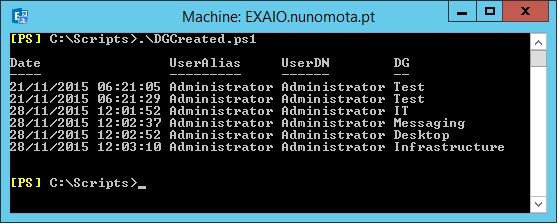
The following basic script will search the Admin Audit Logs for any DG created and return some information about it such as when it was created, by whom and its display name:
Param (
 [Parameter(Position = 0, Mandatory = $False)]
 [String] $From = "01/01/2016"
)


[Array] $DGs = @()

Search-AdminAuditLog -StartDate $From -Cmdlets New-DistributionGroup | Sort RunDate | % {
 $DG = $_.ObjectModified.Split("/")
 $DG = $DG[$DG.count - 1]

 $user = $_.Caller.Split("/")
 $user = $user[$user.Count - 1]
 $userDN = (Get-Mailbox $user).DisplayName

 $DG = New-Object PSObject -Property @{
  Date  = $_.RunDate
  UserAlias = $user
  UserDN  = $userDN
  DG  = $DG
 }

 $DGs += $DG

}

$DGs | Sort Date | FT Date, UserAlias, UserDN, DG -AutoSize


For a more complete report, please check my Exchange Distribution Group Creation Report article on MSExchange.org which generates an HTML report similar to:


Wednesday, May 18, 2016

Remote Exchange Monitoring and Reporting using Email

We all know how crucial a messaging service is to most organizations. With the exception of maybe telephones, businesses today rely on email and messaging systems more than any other piece of infrastructure. Every Exchange administrator knows the importance of continuously monitoring Exchange, not only to prevent downtime and quickly fix problems after they occur, but also to be aware of the health of the infrastructure and to help identify potential problems and performance degradations before they turn into problems and cause downtime.

Monitoring solutions like Microsoft’s System Center Operations Manager, SolarWinds, Nagios, MailScape, etc., are just some examples of monitoring tools for Exchange. However, some organizations do not provide access to these tool’s consoles or dashboards outside the internal network. So what happens if an administrator is out and about without anything other than his/her phone and needs to check if this user has gone over their quota and cannot send emails, on which server a particular database is mounted, or even if ServerA has just been rebooted?

These type of situations might be rare, but I have personally been there and it would have been extremely useful if I could send an email to my mailbox with a particular PowerShell cmdlet and get the output of that cmdlet back. And this is what this article is about. We will develop two basic scripts that will monitor incoming emails between two users (for security reasons), run the cmdlet(s) in the email’s subject and reply with the output from that same cmdlet. The first script will use Message Tracking Logs while the second Exchange Web Services (EWS).

To continue reading, please check this article at MSExchange.org.


Saturday, April 23, 2016

Monitor Mailbox Database Transaction Logs

Excessive database and/or transaction log growth is, unfortunately, not an uncommon problem in Exchange deployments. On top of being hard to troubleshoot, if it is found too late, it can cause serious issues for users and even the business. As such, it is crucial to have an adequate monitoring solution. However, this is not the case in every single organization, so I decided to write a basic script to keep an eye on the number of logs being generated across databases.
 
You can, for example, run the script every hour and if any database currently has more logs than a specified threshold, it sends an alert by email with the number of transaction logs for all databases, highlighting the one(s) that triggered the alert, and the current free space for the database (you might need to update it depending on whether you have the .edb file and logs on the same or different locations).
 
The script simply counts all files in the LogFolderPath location (variable for each database) as this makes it quicker than only looking for *.log files, and still be accurate for what we want to achieve.

You can download the complete final script from the TechNet Script Gallery.

Friday, April 1, 2016

Exchange Distribution Group Creation Report

For some organizations, allowing end users to create and manage their own Distribution Groups is a standard practice. It usually alleviates work from ServiceDesk or second/third line support teams and gives users more responsibility and freedom to perform their role.

While this is indeed a great feature, it is always important to have a good naming convention in place and ensure that users adhere to it. But no matter how much we tell users how they should be creating a distribution group, we all know there will be situations where the group is not created as it should have been.

In one hand, for IT to check every day all the groups users created would cause some overhead. On the other hand, leave them for too long and then it might be difficult to rectify a wrongly-created distribution group. So why not automatically generate a report when new groups are created for IT to look at? That way they do not need to keep constantly checking and it is quick and easy to make sure the newly-created groups are OK.

To download the script and the read the entire article, please go to MSExchange’s Exchange Distribution Group Creation Report article page.

Exchange Meeting Room Statistics

Room mailboxes have been available for a very long time now, and most organizations make extensive use of them for all their meeting room bookings. In certain cases, having statistical information about these rooms helps organizations plan or redesign their offices in a more efficient way. This information can show how often certain rooms are utilized, the average meeting duration, who tends to book more meetings, and so on.

In this article we will develop a script to provide us with some of this information and to serve as a stepping stone to gather further information depending on the reader’s particular needs. The end result will look something like this:
 
In this example, I only searched one meeting room called ITD – 16A – Small CF VC. For the month of December we can see that a total of 115 meetings were booked, out of which 55% are recurring meetings. The average meeting duration was 46 minutes, each meeting had an average of 8 attendees and there were slightly more meetings booked in the morning.

To download the script and the read the entire article, please go to MSExchange’s Exchange Meeting Room Statistics article page.

Wednesday, December 2, 2015

Exchange Web Services Editor

Using PowerShell, Exchange administrators can develop scripts to do almost everything. However, there are occasions where a script that uses Exchange Web Services (EWS) is required, may that be for an administrative task or to develop an entire application.
 
I have developed a few EWS scripts but I admit I am no expert on the subject. As such, sometimes I rely on a great tool that not many people are aware of, the EWS Editor. This tool has 3 main goals:
1.      "Demonstrate the Exchange Web Services Managed API functionality and simplicity to developers through its source code;
2.      Demonstrate the Exchange Web Services SOAP traffic used to perform actions initiated through an explorer user interface;
3.      Assist non-developers in debugging and understanding Exchange stores by exploring items, folders, and their properties in depth."
 
Each release of EWS Editor includes the distribution of the EWS Managed API it was built for. EWSEditor uses .NET Framework version 4.5 which can be downloaded here: .NET Framework 4.5. The latest version of EWS Editor (from May 2015) uses .EWS Managed API 2.2, which requires a minimal of .NET 3.5. EWS Editor can be downloaded from CodePlex.
 
EWS Editor is, in some ways, similar to MFCMapi, another great tool. It does not require installation and unlike MFCMapi it does not require Outlook profiles in order to access mailbox items as it does everything over EWS.
We can check mailbox items and their properties:


We can look into particular folders, its emails, attachments, properties (notice how all the property names are easy to read), etc.:


We can test and get information regarding AutoDiscover:


The tool comes with a multitude of EWS Posts examples that we can use to see how they are built or even post them against Exchange and analyze the response:


We can also check and/or set Out-Of-Office messages for users (assuming we have the right permissions to do so):


It even comes with a handy Distribution Group expansion tool that allows us to see exactly who is a member of a particular group:
Another great tool is the Debug Log Viewer where we can see all the EWS requests and responses for all the actions we do using this tool (in this case we can see the response from the Messaging group expansion above):


There are many, many other things we can use this tool for:


Friday, May 15, 2015

Create Folder on Users’ Mailboxes

One could think that the Exchange Online and Exchange 2013 New-MailboxFolder cmdlet would allow administrators to create folders on other users’ mailboxes. Unfortunately this is not the case...
 
Basically RBAC (Role Based Access Control) only allows the administrator to run this cmdlet on the mailbox it owns. As we can see below, RBAC has an implicit recipient read and write scope set to Self:
 
So can we create a new role based on MyBaseOptions and update the ImplicitRecipientReadScope to OrganizationConfig? Once again, unfortunately no... You see, if you read the Understanding management role scopes TechNet article, it states that:
 
You can't change the implicit scopes defined on management roles. You can, however, override the implicit write scope and configuration scope on a management role. When a predefined relative scope or custom scope is used on a role assignment, the implicit write scope of the role is overridden, and the new scope takes precedence. The implicit read scope of a role can't be overridden and always applies.
 
By the way, the exact same thing applies to the Get-MailboxFolder cmdlet... The good news for this cmdlet is that we can simply use the Get-MailboxFolderStatistics cmdlet to list all folders in any mailbox we want.
 
 
So, as far as I know, there is nothing we can do to make this cmdlet work for other mailboxes the administrator does not own. So is there a way to create folders for other users? Yes, using Exchange Web Services (EWS) script!    :)
 
I have written a few EWS scripts to perform certain actions on mailboxes that are not possible using the native Exchange cmdlets. To achieve this, I am not going to re-invent the wheel as there is already a great script by David Barrett to do exactly what we want. For more information on his script, please check his blog article PowerShell: Create folders in users' mailboxes.

Thursday, June 5, 2014

Microsoft Exchange Web Services Managed API 2.2 Released

The Exchange Web Services (EWS) Managed API 2.2 provides a managed interface for developing client applications that use EWS. The EWS Managed API simplifies the implementation of applications that communicate with versions of Exchange starting with Exchange Server 2007 SP1. Built on the EWS SOAP protocol and Autodiscover, the EWS Managed API provides a .NET interface to EWS that is easy to learn, use, and maintain.

This release also includes the Exchange Server 2013 token validation library that we can use to build mail apps for Outlook that can be authenticated by the identity tokens issued by Exchange 2013.

You can download this latest release here.

Sunday, January 20, 2013

E-mail Recipient Number Distribution

Have you ever wondered what the distribution of the number of recipients per e-mail in your organization is?
 
The following script will go through every e-mail received by Exchange and group the results by the number of recipients.
Get-TransportServer | Get-MessageTrackingLog -ResultSize Unlimited -EventID RECEIVE -Start "07/05/2012 16:40" | ? {$_.Source -eq "STOREDRIVER"} | Select RecipientCount | Group RecipientCount | Select @{Name="Recipients"; Expression={[Int] $_.Name}}, Count | Sort Recipients

Alternatively, you can group them in batches depending on which format you want the output.
[Int] $1 = $2 = $5 = $10 = $30 = $50 = $75 = $100 = $150 = $200 = $250 = $big = 0

Get-TransportServer | Get-MessageTrackingLog -ResultSize Unlimited -EventID RECEIVE -Start "07/05/2012" | ? {$_.Source -eq "STOREDRIVER"} | Select RecipientCount | ForEach {
    If ($_.RecipientCount -eq 1) { $1++ }
    If ($_.RecipientCount -eq 2) { $2++ }
    If ($_.RecipientCount -gt 2   -and $_.RecipientCount -le 5)    { $5++ }
    If ($_.RecipientCount -gt 5   -and $_.RecipientCount -le 10)   { $10++ }
    If ($_.RecipientCount -gt 10  -and $_.RecipientCount -le 30)   { $30++ }
    If ($_.RecipientCount -gt 30  -and $_.RecipientCount -le 50)   { $50++ }
    If ($_.RecipientCount -gt 50  -and $_.RecipientCount -le 75)   { $75++ }
    If ($_.RecipientCount -gt 75  -and $_.RecipientCount -le 100)  { $100++ }
    If ($_.RecipientCount -gt 100 -and $_.RecipientCount -le 150)  { $150++ }
    If ($_.RecipientCount -gt 150 -and $_.RecipientCount -le 200)  { $200++ }
    If ($_.RecipientCount -gt 200 -and $_.RecipientCount -le 250)  { $250++ }
    If ($_.RecipientCount -gt 250 -and $_.RecipientCount -le 300)  { $300++ }
    If ($_.RecipientCount -gt 300) { $big++ }
}

Write-Host "1,                     $1"
Write-Host "2,                     $2"
Write-Host "Between 3 and 5,       $5"
Write-Host "Between 6 and 10,      $10"
Write-Host "Between 11 and 30,     $30"
Write-Host "Between 31 and 50,     $50"
Write-Host "Between 51 and 75,     $75"
Write-Host "Between 76 and 100,    $100"
Write-Host "Between 101 and 150,   $150"
Write-Host "Between 151 and 200,   $200"
Write-Host "Between 201 and 250,   $250"
Write-Host "Between 251 and 300,   $300"
Write-Host "More than 300,         $big"

Thursday, July 28, 2011

Get OCS Client Version Script

This script uses the OCS 2007 R2 Resource Kit (didn't test with OCS 2007) to query its database and check the user’s version of the client they are using to connect to OCS.

The script reads a list of users to query from the UsersList.csv file and then queries one by one using the DBAnalyze tool from the Resource Kit (please update the path accordingly).


$users = Get-Content D:\UsersList.csv
cd "C:\Program Files\Microsoft Office Communications Server 2007 R2\ResKit"

ForEach ($user in $users)
{
  $strCmd = ".\DBAnalyze.exe"
  $strParams = "/Report:user /User:$user > D:\OCSUserReport.txt"
  $strExec = "$strCmd $strParams"
  Invoke-Expression $strExec

  # Get the user's version
  $strVersion = Select-String -Path D:\OCSUserReport.txt -Pattern "Client version"

  # Print the user's client version
  If ($strVersion -ne $NULL)
  {
    Write-Host "$user $strVersion"
  }
}

cd D:\
Remove-Item D:\OCSUserReport.txt