Showing posts with label Migration. Show all posts

Wednesday, June 24, 2020

RecipientNotFoundPermanentException when migrating a mailbox to Exchange Online

The other when migrating a mailbox from an on-prem Exchange 2013 environment to Exchange Online, I was faced with a RecipientNotFoundPermanentException error with the message “Error: Cannot find a recipient that has mailbox GUID '39c970e4-4869-47ee-b9af-f6fd6264ee0a'.


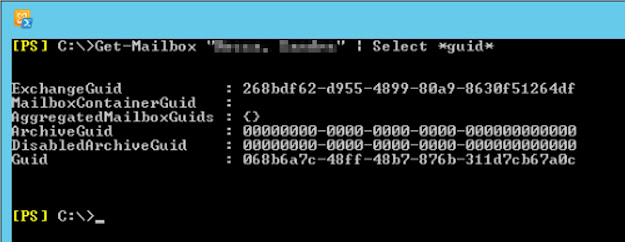
These were the details for the mail user in Exchange Online (notice the ExchangeGuid attribute):


 And these were the details for the mailbox on-premises:


As you can see, the ExchangeGUID was the same! And where was that '39c970e4-4869-47ee-b9af-f6fd6264ee0a' GUID coming from?!

After much troubleshooting, I ended up logging a support ticket with Microsoft. According to the engineer, “this issue is caused due to multiple mailbox shards”. Unfortunately, he wouldn’t go into details as apparently it is all secret stuff... But he ran some diagnostics to resolve the issue, and after a few minutes all was well with the world again!

Sunday, September 15, 2019

MapiExceptionMessagePerFolderCountQuotaExceeded

The other day during a mailbox migration of an on-prem Exchange 2013 mailbox to Exchange Online, I came across the following error:
Error: QuotaExceededException/MapiExceptionMessagePerFolderCountQuotaExceeded: Error: Cannot save changes made to an item to store. --> MapiExceptionMessagePerFolderCountQuotaExceeded: Unable to save changes.

The message was due to a folder in the user’s mailbox which had almost 1,500,000 items in it. The problem is that Exchange Online enforces a maximum number of 1M messages per mailbox folder limit (across all Exchange Online plans). New messages can’t be delivered or saved in a folder when this limit is reached.


There is also a warning for number of messages per mailbox folder. Once a folder in Exchange Online reaches 900,000 items, Exchange Online sends a warning message to the mailbox owner. When this quota is reached, warning messages are sent once a day.


To check which folder(s) in a user’s mailbox is causing this, you can use the Get-MailboxFolderStatistics cmdlet:
Get-MailboxFolderStatistics "user" | % {If ($_.ItemsInFolder -ge 1000000) {Write-Host "Folder with $("{0:N0}" -f $($_.ItemsInFolder)) items: '$($_.FolderPath)'" -ForegroundColor Red}}

It is also crucial to check other limits before starting to sync mailboxes, like mailbox size limit, folder limit, and so on.

Hope it helps!

Sunday, March 31, 2019

The onboarding move could not be created because user ‎is already being moved

When migrating mailboxes to Exchange Online in a Hybrid environment, you might encounter the following error:
PS C:\> Get-MigrationUser user@domain.com | FL

Identity            : user@domain.com
BatchId             : Pilot Migration 1
MailboxEmailAddress : user@domain.com
RecipientType       : MailboxOrMailuser
Status              : Failed
StatusSummary       : Failed
MigrationType       : ExchangeRemoteMove
State               : Failed
WorkflowStep        : DataMigration
WorkflowStage       : Injection
ErrorSummary        : The onboarding move could not be created because user 'User' is already being moved.

If you have already checked all your migration batches (Get-MigrationBatch) and/or all your individual move requests (Get-MoveRequest “user”) and there is absolutely no move request associated with this user, then it is very likely you still have a move request for the user in your on-premises Exchange environment.

So, go to your on-premises environment and remove the local move request for that particular user. This should clear the msExchMailboxMoveRemoteHostName AD attribute. Other attributes related to move requests that you can also check are:
  • msExchMailboxMoveBatchName
  • msExchMailboxMoveFlags
  • msExchMailboxMoveRemoteHostName
  • msExchMailboxMoveSourceMDBLink
  • msExchMailboxMoveStatus
  • msExchMailboxMoveTargetMDBLink

Friday, March 9, 2018

Understanding Office 365 Exchange Online migration endpoints

For a few years now, Microsoft has provided pretty much the same types of migration for organizations to use to migrate email data to Exchange Online in Office 365 from on-premises messaging systems, be that Exchange or not. Additionally, end users themselves can also import their own email, contacts, and other mailbox information to an Office 365 mailbox created for them, but that’s typically only used in very small migrations.

Part of the migration process, excluding some third-party migrations, is the configuration and use of one or more Exchange Online migration endpoints. These are simply a connector from Office 365 to the on-premises email system, and that’s what this article focuses on.

To read the full article, please head over to TechGenix or click on this link: Understanding Office 365 Exchange Online migration endpoints.

Sunday, October 15, 2017

Exchange Mailbox Move History

A common task amongst many Exchange administrators around the world is moving users’ mailboxes between databases. This could be to move the user to a database with a higher quota limit, because the user moved to a different location so we want to move his mailbox to an Exchange server closer to his new location, simply because of an Exchange transition/migration, or for many other reasons.


Whatever the case might be, Exchange keeps track of these mailbox moves in case we need to find out, for example, where a mailbox was located before. To access this information, we need to run the Get-MailboxStatistics cmdlet against the mailbox we want to check and use the IncludeMoveHistory switch, such as follows (some output has been removed for brevity):
Get-MailboxStatistics nuno –IncludeMoveHistory | FL
or
(Get-MailboxStatistics nuno –IncludeMoveHistory).MoveHistory

Status                           : Completed
Flags                            : IntraOrg, Pull
SourceDatabase                   : MDB2
SourceVersion                    : Version 14.3 (Build 224.0)
SourceServer                     : server2.nunomota.pt
SourceArchiveDatabase            :
SourceArchiveVersion             : Version 0.0 (Build 0.0)
SourceArchiveServer              :
TargetDatabase                   : MDB01
TargetVersion                    : Version 15.0 (Build 1076.0)
TargetServer                     : server1.nunomota.pt
TargetArchiveDatabase            :
TargetArchiveVersion             : Version 0.0 (Build 0.0)
TargetArchiveServer              :
BadItemLimit                     : 0
BadItemsEncountered              : 0
LargeItemLimit                   : 0
LargeItemsEncountered            : 0
QueuedTimestamp                  : 6/18/2017 12:51:20 PM
StartTimestamp                   : 6/18/2017 12:51:26 PM
FinalSyncTimestamp               : 6/18/2017 12:52:17 PM
CompletionTimestamp              : 6/18/2017 12:55:16 PM
OverallDuration                  : 00:03:55.2744307
TotalFinalizationDuration        : 00:02:57.7932767
TotalSuspendedDuration           : 00:00:00
TotalFailedDuration              : 00:00:00
TotalQueuedDuration              : 00:00:00.7499765
TotalInProgressDuration          : 00:03:54.5244542
TotalStalledDueToHADuration      : 00:00:00
TotalTransientFailureDuration    : 00:00:00
MRSServerName                    : server2.nunomota.pt
TotalMailboxSize                 : 51.25 MB (53,742,458 bytes)
TotalMailboxItemCount            : 669
Message                          :
FailureTimestamp                 :
Report                           :


“The IncludeMoveHistory switch specifies whether to return additional information about the mailbox that includes the history of a completed move request, such as status, flags, target database, bad items, start times, end times, duration that the move request was in various stages, and failure codes.”


The number of moves that are kept in Exchange will depend what version of Exchange you are running. For Exchange 2010 the default value is 2 while for 2013 it is 5. However, this number can be customized by editing the Mailbox Replication Service (MRS) configuration. To do this, open the MsExchangeMailboxReplication.exe.config file, which by default is located at C:\Program Files\Microsoft\Exchange Server\V15\Bin, using Notepad with Admin rights. Then, go to the MRSConfiguration section and update the MaxMoveHistoryLength setting with a value between 0 and 100.


To get a higher level of detail, we can instead use the IncludeMoveReport switch. This switch specifies whether to return a verbose detailed move report for a completed move request, such as server connections and move stages.

Monday, January 23, 2017

Get-MoveRequest Queued "Job is waiting for resource reservation"

The other day I was trying to move a 5 MB mailbox from one server to another (both running Exchange 2013) when I noticed the move request was stuck on Queued for a long time. The first thing I did was checking the statistics of the move request by running the following cmdlet:
Get-MoveRequest | Get-MoveRequestStatistics | FL

In the stats I could see the following warning/error:
Job is waiting for resource reservation. MRS will continue trying to pick up this request. Details: Resource reservation failed for 'LocalServer/ServerRead' (Processor): load ratio 4.2, load state 'Overloaded', metric 64. This resource is currently unhealthy.


This would change intermittently to the following warning/error:
Message: Resource 'Processor' is unhealthy and shouldn't be accessed.


This could also be seen in the Application Event Log of the server:
Log Name:      Application
Source:        MSExchange Mailbox Replication
Date:          1/19/2017 10:25:09 AM
Event ID:      1121
Task Category: Request
Level:         Error
Computer:      server.domain.com
Description:   The Microsoft Exchange Mailbox Replication service was unable to process a request due to an unexpected error. Request GUID: 'e2f8d856-f258-4cab-a1d1-dde19df2a000' Database GUID: '3479f71f-df65-48ff-a80d-9379495b6aac' Error: Resource 'Processor' is unhealthy and shouldn't be accessed.

The cause is self-explanatory: high CPU usage. When I checked the server’s CPU, this was indeed the case:

The possible workarounds are to stop any CPU-intensive processes (if there are any that can be stopped), investigate what is causing the high CPU and fix it, or wait for the CPU usage to come down at which point the move request will resume automatically.

You may also see similar warnings for other resources such as disk IOPS for example:
Resource reservation failed for 'MdbWrite(“database_name”)' (MdbLatency(“database_name”)): load ratio -1, load state 'Unknown', metric (null).
or
Resource reservation failed for 'Mailbox Database/MdbWrite' (CiAgeOfLastNotification(“database_name”)): load ratio X.XXXXXXX, load state 'Critical', metric 2147483647. This resource is currently unhealthy.

Thursday, July 16, 2015

Fatal error TooManyMissingItemsPermanentException has occurred


During a recent transition from Exchange 2010 to 2013, a user’s mailbox failed to get migrated:

[PS] C:\>Get-MoveRequestStatistics “nuno mota”

DisplayName          StatusDetail
-----------          ------------
Nuno Mota            FailedOther


Ok, “FailedOther” does not provide much information... Let us get a report of the actual move request to try to find out exactly what happened:


[PS] C:\>Get-MoveRequestStatistics “nuno mota” -IncludeReport | FL

(...)

7/13/2015 10:40:23 AM [server1] A missing item was encountered: Missing Item (IPM.Note.EnterpriseVault.Shortcut) Subject:"Tania   resume", Folder:"Outbox"
 
7/13/2015 10:40:23 AM [server1] A missing item was encountered: Missing Item (IPM.Note.EnterpriseVault.Shortcut) Subject:"Netting Off entry 2011 March  28", Folder:"Outbox"
 
7/13/2015 10:40:23 AM [server1] A missing item was encountered: Missing Item (IPM.Note.EnterpriseVault.Shortcut) Subject:"Data for weekly report -  11/March/2011", Folder:"Outbox"
 
7/13/2015 10:40:23 AM [server1] A missing item was encountered: Missing Item (IPM.Note.EnterpriseVault.Shortcut) Subject:"FW: 2011 JAN ANALYSIS  revised based on ultimate parent name", Folder:"Outbox"
 
7/13/2015 10:40:23 AM [server1] A missing item was encountered: Missing Item (IPM.Note.EnterpriseVault.Shortcut) Subject:"PAYMENT RECONCILIATION  as on 16/2/2011", Folder:"Outbox"
 
7/13/2015 10:40:23 AM [server1] A missing item was encountered: Missing Item (IPM.Note.EnterpriseVault.Shortcut) Subject:"PORTFOLIO CAL  ACC _EOP  LIST CALCULATION   as on 07/01/2011", Folder:"Outbox"
 
7/13/2015 10:40:24 AM [server1] Mailbox contents verification complete: 139 folders, 254510 items, 2.829 GB (3,037,189,613 bytes).
 
7/13/2015 10:40:25 AM [server1] Stage: FinalIncrementalSync. Percent complete: 95.
 
7/13/2015 10:40:25 AM [server1] Fatal error TooManyMissingItemsPermanentException has occurred.
 
 
Ok, so from the output above we can have a clearer view of what is happening. At the end of the report we see a TooManyMissingItemsPermanentException error is preventing Exchange from completing the move request, and the reason for that is all the EnterpriveVault stubs that seem to be missing from the mailbox’s Outbox folder.
 
When we create a mailbox move request, or batch, we can use the BadItemLimit parameter to specify the maximum number of bad items that are allowed before the request fails. A bad item is a corrupt item in the source mailbox that cannot be copied to the target mailbox. However, also included in the bad item limit are missing items. Missing items are items in the source mailbox that cannot be found in the target mailbox when the request is ready to complete.
 
So, if we are comfortable ignoring this error and possibly leaving a few bad items behind, we can either increase the BadItemLimit by running:

Set-MoveRequest “nuno mota” –BadItemLimit 50
Resume-MoveRequest “nuno mota”

 
Valid input for BadItemLimit is an integer or the value unlimited. The default value is 0, which means the request will fail if any bad items are detected. If you set this value to 51 or higher, you also have to use the AcceptLargeDataLoss switch, otherwise the cmdlet will fail.

If too many bad items are detected, consider using the New-MailboxRepairRequest cmdlet to attempt to fix corrupted items in the source mailbox, and try the request again.


Alternatively, we can update the ContentVerificationMissingItemThreshold setting in the MsExchangeMailboxReplication.exe.config file which in Exchange 2013 is located by default at C:\Program Files\Microsoft\Exchange Server\V15\Bin.

If you opt for changing this setting, you have to restart the restart Microsoft Exchange Mailbox Replication service and then resume the move request as above.

Friday, January 23, 2015

Exchange Online Onboarding Message Size Limit Now 150 MB

Whenever administrators migrate mailboxes to Exchange Online, an onboarding limit in terms of message size always apply in order to avoid migrating huge messages and potentially impact service. Up until now this limit was 25MB (attachment size) plus overhead, so approximately 36MB in total. If a mailbox contained any emails over this size, they would simply be skipped and administrators had to find alternative ways to import them. To be honest, not many companied allow such big emails, but I have worked with a few that do, which would cause an issue if migrating to Office 365...

Now, this limit has been increased to 150MB (and is already available to all customers)! However, please have the following in mind:
  • This new limit only applies to onboarding moves using the native Mailbox Replication Service (MRS) and which target AD user objects with a RecipientType of MailUser (MEU) that do not have MaxReceiveSize stamped. For example, hybrid deployments;
  • All other data migration solutions, both using Microsoft tools and 3rd party tools target UserMailbox (MBX) AD users (i.e., rely on the mailbox already being created in Exchange Online). The increased onboarding message size limit does not apply to these solutions which will use the limit (MaxReceiveSize) configured on these MBX objects. The maximum-allowed onboarding message size limit for these solutions remains 36MB. This includes merges (staged and cutover migration), IMAP, EWS, MAPI, 3rd party tools, and PST Import.

The good news is that soon administrators will be able to customize the send/receive size limit, enabling them to modify the MaxSendSize and MaxReceiveSize limits on their MBXs and MEUs, effectively overcoming this limitations (hopefully).

The Exchange Online Service Description has now been updated to reflect this change.

Monday, November 3, 2014

Permissions lost after moving mailbox from Exchange 2003 to Exchange Online in hybrid environment

Consider the following scenario:
  • Your on-premises Exchange organization includes mailboxes that are hosted in Exchange 2003;
  • Your on-premises Exchange organization is set up for a hybrid deployment together with Exchange Online;
  • You move users or shared mailboxes from on-premises Exchange to Exchange Online.
 
After you move these mailboxes, you notice that the original mailbox permissions are not retained.

You might also notice that when you run the Add-MailboxPermission cmdlet in Exchange Online, you receive an error stating:
The ACL for the object “CN=user,CN=Users,DC=letsexchange,DC=com" is not in canonical order (Deny/Allow/Inherited) and will be ignored.

This is because Exchange 2003 uses a mailbox security descriptor system that is no longer used by Exchange Online. Because of this, when an Exchange 2003 mailbox is moved to Exchange Online, the original mailbox security descriptors are ignored and permissions are not kept.

To resolve this issue, run the FixMailboxSD command-line tool to correct the security descriptions on the on-premises Exchange 2003-based servers.

This is a small utility to fix mailbox security descriptors in Microsoft Exchange that have become non-canonical. It must be run on a machine with Exchange System Manager, as it relies on the interfaces exposed by CDOEXM, but it will work against mailboxes on 2003 or 2007 (not 2010 or 2013).

The tool uses CDOEXM from C# to read the MailboxRights object from the IExchangeMailbox interface. It then iterates through the DACL and puts all the ACEs in canonical order, and saves the changes.

The syntax of the tool is very straightforward:
FixMailboxSD “DN of mailbox”

For example:
FixMailboxSD “CN=nuno,CN=Users,DC=letsexchange,DC=com”

The tool will display a summary view of the current DiscretionaryAcl, and then show a summary view of the DACL after it has reordered it. It will then save the changes and return to a command prompt.
 

Wednesday, June 4, 2014

Office 365 IMAP Migration From Different Domain

Office 365 IMAP Migration From Different Domain
Often I get asked if it is possible to perform an IMAP Migration from an e-mail system that is using a different domain than the one being used in Office 365. A typical scenario are those who want to migrate from Gmail (...@gmail.com) into Office 365, either using a custom domain or the Microsoft-provided one (...@domain.onmicrosoft.com).

Most of the times, the question comes to light when they try to perform exactly this but receive the following error message:
 
MigrationRecipientNotFoundException
Migration rate:
Error: MigrationRecipientNotFoundException: A recipient wasn‎'t found for ”user@gmail.com” on the target. Create a recipient of the appropriate type for this migration on the target and try again.


It is perfectly possible to use IMAP migration to migrate users who have different e-mail address suffix other than the domain which verified in Office 365!

The reason why we get this error, is simply because the CSV file used in the migration was not created properly. As a quick overview, the CSV file can contain up to 50,000 rows, one row for each user, and can be as large as 10MB. However, it is always a good idea to migrate users in smaller batches.
The required attributes for each user are as follows:
  • EmailAddress specifies the e-mail address of the target mailbox in Exchange Online;
  • UserName specifies the user logon name for the user's source mailbox on the IMAP server (in this example Gmail);
  • Password is the password for the user's account in the IMAP messaging system.

The problem here is that sometimes administrators use the EmailAddress attribute to specify the e-mail address of the source mailbox, when it is actually used to match a source mailbox to its target mailbox. However, there is no need for a source e-mail address as no similar process to autodiscover is performed. Exchange will use the username and password specified, and try to connect to the source system using the connection settings for the migration batch:
 
 
As long as all these settings are correct, you should have no problems!

Wednesday, May 14, 2014

Exchange 2013 Platform Options

For BDMs and architects, this model describes the available platform options for Exchange 2013. Customers can choose from Exchange Online with Office 365, Hybrid Exchange, Exchange Server on-premises and Hosted Exchange. The poster includes details of each architectural option, including the most ideal scenarios for each, the license requirements and IT Pro responsibilities.

Get the poster now on PDF or Visio format from the Download Center here.


Thursday, March 20, 2014

Exchange 2013 in coexistence scenario might trigger all clients to download OAB

Installing the first Exchange 2013 server in an organization that already has Exchange 2007 or 2010 might trigger all clients in the organization to download a new copy of the OAB, which can result in network saturation and server performance issues.

This occurs because Exchange 2013 creates a new default OAB in the organization that supersedes the Exchange 2007/2010 OAB. Mailboxes that do not have a specific OAB assigned to them, or that are located on a mailbox database that does not have a specific OAB assigned, will download the new default OAB.

To prevent this from happening, assign an OAB to every mailbox or database before installing the first Exchange 2013 server.

Wednesday, February 12, 2014

Free/Busy Information Period (Exchange 2013-2007 Error)

Free/busy information requests to an Exchange 2007 organization from an Exchange 2013 organization may fail due to a mismatch in the requested free/busy information period. By default, Exchange 2007 accepts availability requests for 42 days of free/busy information and Exchange 2013 may request 62 days of free/busy information. If the request exceeds the default 42 limit imposed by Exchange 2007, the request will fail.
 
In order to prevent this failure, follow the steps below to configure your Exchange 2007 CAS servers to accept longer period free/busy information requests:

1. On all your Exchange 2007 CAS servers, open the following file with a text editor such as Notepad (remember to create a backup copy first!):
<Exchange Installation Path>\V14\ClientAccess\ExchWeb\EWS\web.config

2. Locate the appSettings section;

3. Add a new key “<add key="maximumQueryIntervalDays" value="62" />” and save the web.config file. The maximumQueryIntervalDays value is not present by default. When this value is not present, Exchange 2007 uses the default interval of 42 days.

4. Restart IIS on all the Exchange 2007 CAS servers.

Tuesday, January 21, 2014

Staged Exchange Migration with ADFS and DirSync

Some organizations implement ADFS and DirSync in order to take advantage of the Single Sign-On capabilities. However, not all of them opt for a hybrid deployment and perform a Staged Exchange Migration instead to move mailboxes from the on-premises environment to Office 365.
 
In order to perform such migration, one of the steps involved is the creation of a CSV for the Migration batch. This CSV needs to have three columns: EmailAddress, Password and ForceChangePassword.
 
The problem here is if the ForceChangePassword field is set to True. This will cause the migration to fail because Office 365 cannot modify that attribute for an Identity Federated user (remember we are using ADFS and DirSync) so you would get an error.
 
To overcome this, simply update the CSV file and set the ForceChangePassword field to False. This should allow for the migration to succeed.

Saturday, July 13, 2013

eDiscovery During Exchange 2010/2013 Coexistence

When transitioning from Exchange 2010 to 2013, you should be aware of the following in regarding to the eDiscovery feature during the coexistence period.
 
Administrator audit logs and metadata for eDiscovery searches (not search results) are stored in a system (arbitration) mailbox name SystemMailbox{e0dc1c29-89c3-4034-b678-e6c29d823ed9} with the display name of Microsoft Exchange.
 
For eDiscovery to work during the period while Exchange 2010 and 2013 coexist (and after the transition), you need to move this system mailbox to an Exchange 2013 server. You can do this using the EAC or through PowerShell:
Get-Mailbox -Arbitration "SystemMailbox{e0dc1c29-89c3-4034-b678-e6c29d823ed9}" | New-MoveRequest -TargetDatabase “Exchange_2013_database”

When the move finishes, to check if everything went OK, run the following cmdlet and ensure the Server and Database values refer to Exchange 2013:
Get-Mailbox -Arbitration “SystemMailbox{e0dc1c29-89c3-4034-b678-e6c29d823ed9}” | FL ServerName, Database

If you do not move this system mailbox to Exchange 2013, the following issues will occur when Exchange 2010 and Exchange 2013 coexist in your Exchange organization:
  • Exchange 2013 tasks are not saved to the administrator audit log. When you run the Search-AdminAuditLog cmdlet or try to export the administrator audit log in the EAC, you will receive an error that says you cannot create an administrator audit log search because this system mailbox is located on a server that is not running Exchange 2013. A Microsoft Exchange error with an Event ID of 5000 is also logged in the Windows Application log each time a command is run;
  • You cannot run eDiscovery searches using the EAC or the Shell in Exchange 2013. Mailbox searches can be created and queued, but they cannot be started. An error with an Event ID of 6 is logged in the MsExchange Management log, stating that the Start-MailboxSearch cmdlet failed. However, you can search mailboxes using the Shell and the Exchange Control Panel in Exchange 2010.

Monday, June 17, 2013

Migrating Public Folders to Exchange 2013

Now that Exchange 2007 SP3 RU10, Exchange 2010 SP3 and Exchange 2013 CU1 have been released, administrators can start deploying Exchange 2013 in a coexistence scenario with these two previous versions of Exchange.
 
Part of many transitions from Exchange 2007/2010 to 2013 will include the migration of Public Folders (PFs). Because of all the major changes made to PFs, discussed in the Exchange 2013 Preview - Public Folders article, legacy Exchange mailboxes are unable to access the PF hierarchy on Exchange 2013 servers. However, mailboxes on Exchange 2013 can connect to legacy PFs.
 
Unlike migrating PFs between previous versions of Exchange, PFs on Exchange 2013 and legacy PFs cannot coexist in an Exchange organization, which means that migrating PFs to Exchange 2013 is a one-time cut-over process.
 
Because legacy mailboxes cannot access PFs in Exchange 2013, it is recommended that all mailboxes are first moved to Exchange 2013 and only then PFs migrated.
 
The high level process for migrating Public Folders from Exchange 2007/2010 is as follows:
   1. Migrate user mailboxes to Exchange 2013 before migrating PFs;
   2. Snapshot current PF environment for comparison when migration is complete (folders, sizes and permissions);
   3. Create CSV file, manually or using scripts (Export-PublicFolderStatistics.ps1 and PublicFolderToMailboxMapGenerator.ps1). End result is a CSV file mapping PFs to new PF mailboxes;
   4. Create PF mailboxes using New-Mailbox –PublicFolder cmdlet;
   5. Migrate PF content using New-PublicFolderMigrationRequest cmdlet;
   6. Lock down Exchange 2007/2010 PFs for final migration using the following cmdlets:
         a.      Set-OrganizationConfig –PublicFoldersLockedForMigration $True (Exchange 2010)
         b.      Set-OrganizationConfig –PublicFolderMigrationComplete $True (Exchange 2013)
         c.      Set-PublicFolderMigrationRequest <name> -PreventCompletion $False (Exchange 2013)
         d.      Resume-PublicFolderMigrationRequest <name> (Exchange 2013)
   7. Test new PFs;
   8. Snapshot Exchange 2013 PFs and compare with Exchange 2007/2010 PF snapshots;
   9. Roll back, if necessary, by running Set-OrganizationConfig –PublicFoldersLockedForMigration $False and Set-OrganizationConfig –PublicFolderMigrationComplete $False;
   10. Remove Exchange 2007/2010 PFs and PF databases.

For a detailed explanation, including step by step instructions, please check MSExchange.org and the Migrating Public Folders to Exchange 2013 article.

Monday, December 10, 2012

Mailbox Size Increases when Transitioning to Exchange 2013

If you are transitioning from Exchange 2007/2010 to Exchange 2013, we will see that the reported size of the mailboxes will increase around 30 to 40%! Don’t be alarmed just yet. The actual space used by the mailbox database will not increase by 30% as this only refers to the attribution of space used by each individual mailbox.

Basically, Exchange 2013 now includes in the mailbox size attribute all the properties of items in a mailbox, thus providing a more accurate calculation of space taken by items in a mailbox and, therefore, the whole mailbox itself.

The problem with this is that, during a migration, users might exceed their mailbox quota when their mailbox is moved to Exchange 2013 and be prevented from sending and/or receiving e-mails...

So, in order to prevent this from happening, I suggest increasing everyone’s mailbox quota by 40% prior to their move. You can either do this at the mailbox database level if your users are using the database quotas, or individually on a per-user basis.

For example, if you want to increase by 40% the ProhibitSendQuota value for all users that are not using the database quota defaults, you can use the following cmdlet:
Get-Mailbox -ResultSize Unlimited -Filter {UseDatabaseQuotaDefaults -eq $False} | Where {$_.ProhibitSendQuota -ne "unlimited"} | ForEach {Set-Mailbox $_ -ProhibitSendQuota "$($($_.ProhibitSendQuota).Value.ToMB() * 1.4)MB" -WhatIf}

However, don’t forget to set the IssueWarningQuota or ProhibitSendReceiveQuota if you are using them! Note that this is not the best method as users might end up with a quota of 1523MB for example when the ideal value would be 1500MB...

Monday, May 21, 2012

Forwarded External Emails Don’t Display Sender’s Address

After migrating thousands of mailboxes from Exchange 2007 to 2010, only recently came to my attention a bug in the whole process.

Let’s say we have a user (call it UserA) that has a rule to automatically forward every e-mail received to his assistant (UserB):


Using the scenario above, with Exchange 2007 when an external e-mail is received by UserA and forwarded automatically by the Outlook rule to UserB, this will receive the e-mail like this:

Note that the e-mail address of the external recipient is displayed.


However, with Exchange 2010 the same thing doesn’t seem to happen!... Running the exact same test with both users now on Exchange 2010, UserB receives the e-mail like:

Note that my external e-mail address is not displayed so UserB has no way of replying to the sender!


Workaround
There are two main workarounds for this:

1. Update the Outlook rule to use one of the following actions instead: “forward it to people or distribution list as an attachment” or “redirect it to people or distribution list”:

However (1) the e-mail will be received as an attachment which means it is an extra step for UserB to read the e-mail and (2) the e-mail will be received by UserB as having been sent directly from the external sender to him/her, when it was actually sent to UserA...


2. At the Exchange level, enable the auto forward feature from UserA to UserB (make sure “Deliver message to both forwarding address and mailbox” is also selected so that both UserA and UserB receive the e-mail):


However this only allows you to specify one user and although the e-mail received has the sender’s e-mail address, it looks different:
For me, this is the best workaround for overcome this issue, but I guess it’s all up to the user how he/she prefers it.

You could specify a second user by using the Shell instead and a little "cheat":
Set-Mailbox UserA -ForwardingAddress userc@letsexchange.com -DeliverToMailboxAndForward $true


Reason for This?!
It turns out this only happens for mailboxes migrated from Exchange 2007 to 2010. If a mailbox is created on 2010, it works as expected with the sender’s e-mail address being displayed!

According to Microsoft, this issue was recorded as a bug and was closed as “Won't Fix”, so I don’t expect it to get fixed any time soon...

It is hard to believe that with so many costumers and millions of mailboxes migrated from Exchange 2007 to 2010 all over the world, Microsoft is not planning to fix this, so I am still trying to find out if this is actually the case.


At the time of this post, I am running Exchange 2010 SP2 RU2.

Sunday, September 4, 2011

OWA 2010 cannot open 2007 mailbox


As you know, as long as you have the proper permissions you can access another users’ mailbox using OWA.
However, if you are in the middle of a migration from Exchange 2007 to 2010 and you have deployed Update Rollup 1 for Exchange 2007 Service Pack 3 you will find that a user in 2010 cannot open a 2007 mailbox even though he/she has Full Access permissions to it...

When I login to OWA using my Nuno account (in 2010) and try to open the Mota mailbox (in 2007) I get the following error:


This is because Rollup 1 introduces the following “fix”:
976100 - Shared calendar items are shown incorrectly in the server time zone instead of the time zone of an Exchange Server 2007 user who is accessing the shared calendar

“Consider the following scenario:
User A and User B are Exchange Server 2007 users;
User B shares a calendar with User A;
User B grants User A read access permission to the calendar;
User A accesses the shared calendar of User B by using Outlook Web Access (OWA).

In this scenario, the shared calendar items are shown in the time zone of the server instead of the time zone of User A. However, if User A has full access permission to the shared calendar of User B, the calendar items are shown in the time zone of User A.

This problem occurs because the time zone information is stored in a configuration message that is in the root of the mailbox. A user who does not have full access permission to a shared calendar, cannot access the time zone information. Therefore, the server time zone is used.”


After this Rollup is installed, you can control the time zone at the Organization level by running the Set-OrganizationalSetting cmdlet together with the SharedCalendarTimeZone parameter. Principal, Delegate and UserConfigured are the three values for the SharedCalendarTimeZone parameter which, by default, is set to UserConfigured.
If the parameter value is set to Principal, the time zone is shown in the principal’s time zone. If set to Delegate, the time zone is shown in the Delegate’s time zone. If set to UserConfigured, the user can follow these steps to change the time zone to the delegate’s time zone or to the principal’s time zone:
Log on to OWA, and navigate to the Options page;
Check the default value for the shared calendar time zone;
Select the value for the "When viewing a shared calendar, show items in:" drop-down list to Delegate Time Zone or to Principal Time Zone.

Note: when you configure the SharedCalendarTimeZone parameter to either Principal or to Delegate by using the Set-OrganizationalSetting cmdlet, the option to configure the time zone in OWA is disabled.


Resolution
To fix this issue, all you have to do is run the following command from a 2007 server to set the SharedCalendarTimeZone to Principal (which is the only option that fixes this issue):

Set-OrganizationalSetting –SharedCalendarTimeZone Principal

Note: Please test this change before deploying it to your live environment as it might confuse users if they are spread across different time zones!


Hope this helps!

Saturday, September 3, 2011

550 5.7.1 Submission has been disabled for this account


If you are migrating from Exchange 2007 to Exchange 2010 and 2007 users are getting the following error when e-mailing 2010 users:
   The following recipient(s) could not be reached:
   Nuno
   (…)
   nuno@letsexchange.com
   HTCAS1.letsexchange.com #550 5.7.1 Submission has been disabled for this account # #
   (…)


and you see the same error on the 2007 Transport Logs for that e-mail:
    Source:          SMTP
    EventID:         FAIL
    Recipients:      {nuno@letsexchange.com}
    RecipientStatus: {550 5.7.1 Submission has been disabled for this account}
    (...)


be aware that this is (most likely) due to a bug (not confirmed with Microsoft) with Exchange 2010...


If your 2007 users have the following set for their mailboxes:
    UseDatabaseQuotaDefaults: True
    ProhibitSendReceiveQuota: 0KB
    ProhibitSendQuota:        0KB


This is what’s causing the issue! Although they are still able to e-mail 2003 and 2007 users, they can’t send e-mails to 2010 users due to the way Exchange 2010 checks the user’s quotas, even though they are set to use the database defaults!...


To check if this has already happened to any of your users, run the following command to check your transport logs for the error message mentioned before:
Get-TransportServer | Get-MessageTrackingLog -ResultSize Unlimited -Start "01/09/2011" -EventID FAIL | ? {$_.RecipientStatus -match "550 5.7.1 Submission"} | Select *, {$_.Recipients}, {$_.RecipientStatus} | Export-Csv D:\Nuno\550.csv -NoTypeInformation

To see if you have any users with 0KB quotas:
Get-Mailbox -ResultSize Unlimited -Filter {UseDatabaseQuotaDefaults -eq $True} | ? {$_.ProhibitSendReceiveQuota -eq 0KB -or $_.ProhibitSendQuota -eq 0KB} | Select Alias, ProhibitSendReceiveQuota, ProhibitSendQuota, UseDatabaseQuotaDefaults

and to correct them, run the following:
Get-Mailbox -ResultSize Unlimited -Filter {UseDatabaseQuotaDefaults -eq $True} | ? {$_.ProhibitSendReceiveQuota -eq 0KB -or $_.ProhibitSendQuota -eq 0KB} | Set-Mailbox -ProhibitSendQuota unlimited -ProhibitSendReceiveQuota unlimited


Note: 2010 users with 0KB quotas and using the database quota defaults are still able to e-mail 2010 and 2007 users!


Hope this helps!